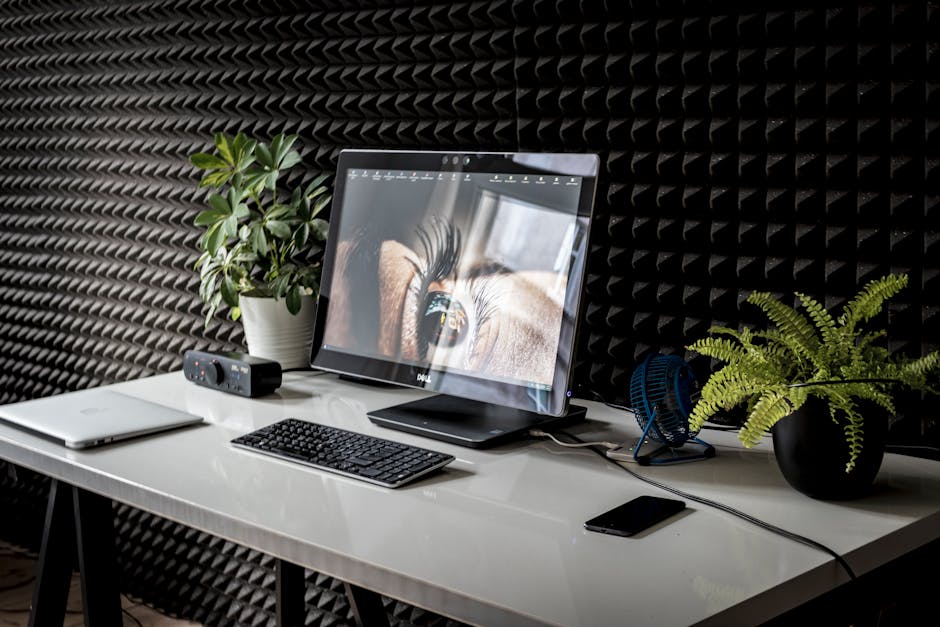
You are three hours into a deep-focus session, hunched over a 13-inch laptop screen, squinting at a spreadsheet where the numbers have begun to blur into a grey haze. Your neck feels like it has been set in concrete, and the constant tab-switching between a Zoom call and a data set is slowly eroding your sanity. This is the moment most remote workers realize that while a kitchen table might suffice as a desk, a laptop screen is a recipe for physical and professional burnout. Upgrading to a dedicated external display is rarely about the pixels themselves; it is about reclaiming the cognitive space lost to digital clutter and the physical comfort required for an eight-hour workday.
How to choose the right monitor size and resolution for productivity
The relationship between screen size and resolution is the most misunderstood aspect of home office ergonomics. Most users assume that a larger screen is objectively better, but without a corresponding increase in resolution, a larger panel simply results in larger, fuzzier pixels. For a standard desk depth of 24 to 30 inches, the sweet spot for productivity is generally a 27-inch monitor with a 1440p (QHD) resolution or a 32-inch monitor with a 4K (UHD) resolution. This maintains a high pixel density—measured in pixels per inch or PPI—which ensures that text remains sharp and legible, reducing the strain on your ocular muscles over long periods.
A 27-inch 1080p monitor, while affordable, often feels like a step backward because the PPI is so low that you can see individual pixels, leading to jagged fonts. Conversely, a 27-inch 4K monitor offers incredible sharpness but often requires software scaling (increasing the size of UI elements) to make text readable. While macOS handles this scaling with remarkable grace, Windows can still struggle with certain legacy applications, leading to blurry windows or tiny icons. If you opt for 4K, moving up to a 32-inch panel allows you to use the screen at 100% or 125% scaling, providing a massive amount of digital real estate—essentially the equivalent of four 1080p monitors arranged in a grid.
Panel technology also dictates your daily comfort. In-Plane Switching (IPS) panels are the industry standard for office work due to their superior color accuracy and wide viewing angles. If you lean back or shift in your chair, the colors and contrast on an IPS panel won’t shift. Vertical Alignment (VA) panels offer deeper blacks and are often found in curved monitors, but they can suffer from “ghosting” when scrolling through text-heavy documents. For the researcher or the data analyst, the stability of an IPS panel is almost always the superior choice, despite the slightly lower contrast ratios compared to VA or OLED alternatives.
Best 4K monitors for text clarity and creative professional work
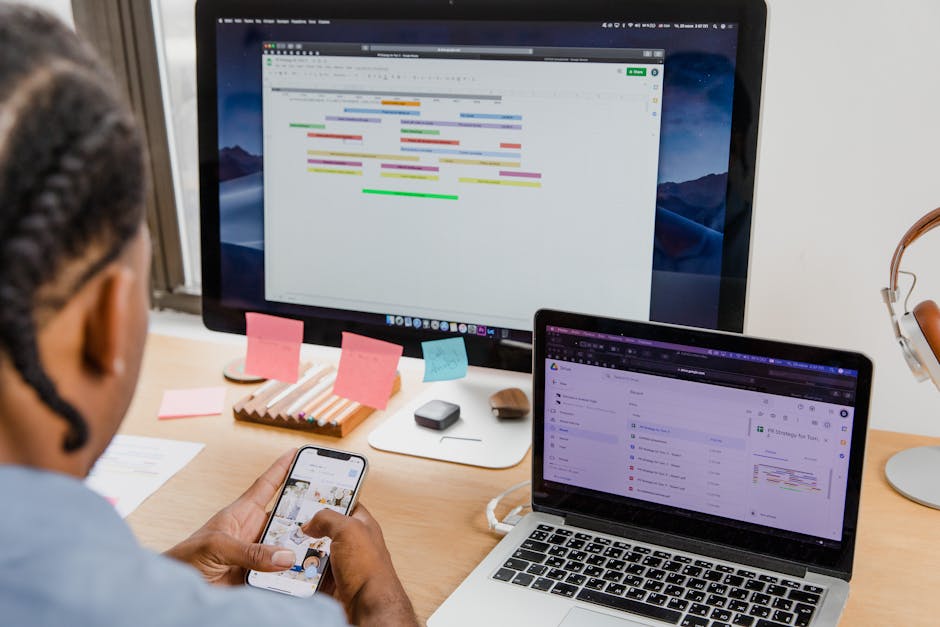
For those whose work involves high-resolution imagery, video editing, or simply a deep appreciation for crisp typography, the 4K market has matured significantly. The current leader for general professional use is the Dell UltraSharp U2723QE. Priced at approximately $580, it is the first major monitor to utilize LG’s IPS Black technology. This specific panel type doubles the contrast ratio of traditional IPS screens from 1000:1 to 2000:1, resulting in blacks that look significantly deeper and less “washed out” in dimly lit home offices. It also serves as a robust USB-C hub, providing 90W of power delivery to your laptop, meaning one cable handles your video signal, data, and charging.
Dell UltraSharp U2723QE Specs and Performance
- Price: ~$580
- Pros: Exceptional contrast for an IPS panel; 90W USB-C charging; built-in KVM switch for controlling two PCs with one mouse/keyboard.
- Cons: Limited to a 60Hz refresh rate; HDR performance is mediocre compared to dedicated media displays.
Another strong contender is the LG 32UN880-B UltraFine Ergo. This monitor is unique because it replaces the traditional desktop base with an integrated C-clamp arm. This allows you to swing, tilt, and swivel the 32-inch 4K screen into almost any position, freeing up a massive amount of desk space. For approximately $450, it offers 95% DCI-P3 color gamut coverage, making it an excellent tool for designers who need color precision without spending thousands on a reference-grade display. However, the clamp requires a desk with a sturdy edge; if you use a glass-top desk or one with a shallow frame, installation can be problematic.
LG 32UN880-B Ergo Details
- Price: ~$450
- Pros: Superior ergonomic arm included; excellent color accuracy; clean aesthetic for minimalist setups.
- Cons: Built-in speakers are tinny; USB-C power delivery is capped at 60W, which may not be enough for high-end workstations under heavy load.
Should you choose an ultrawide monitor or a dual monitor setup?
The debate between a single ultrawide display and a dual-monitor configuration often comes down to how your brain processes tasks. A dual-monitor setup—usually two 24-inch or 27-inch screens side-by-side—offers a clear physical boundary between applications. You might keep your primary work on the left and your communication tools (Email, Slack, Teams) on the right. This “hard border” created by the bezels can actually help with focus by siloing distractions. However, it also requires more cables, more desk space, and can lead to neck strain if you are constantly turning your head to the far edges of the screens.
Ultrawide monitors, typically with a 21:9 aspect ratio, offer a seamless canvas. The Dell UltraSharp U3423WE ($750) is a prime example of this category. It provides the horizontal space of roughly one and a half standard monitors without a bezel in the middle. This is particularly transformative for video editors who need long timelines or financial analysts managing wide spreadsheets. The slight curve (3800R) helps keep the edges of the screen within your peripheral vision, reducing the need for significant head movement. The trade-off is that sharing your screen during a video call can be awkward, as your colleagues will see a very wide, thin strip of video unless you use specialized software to share only a portion of the screen.
| Feature | Dual Monitor Setup (2x 27″) | Ultrawide Monitor (34″) |
|---|---|---|
| Total Desktop Area | Higher (5120 x 1440 or more) | Moderate (3440 x 1440) |
| Cable Management | Complex (Minimum 4 cables) | Simple (One USB-C cable) | Can cause neck swivel strain | Curvature supports peripheral vision |
| Price Range | $400 – $1,000 | $500 – $1,200 |
If you choose the ultrawide route, look for a 34-inch model with a 1440p resolution. Lower-resolution 1080p ultrawides exist, but the lack of vertical height often feels claustrophobic for document editing. The seamless nature of an ultrawide encourages a more fluid workflow, but it requires more discipline to keep your windows organized. Tools like FancyZones (part of Microsoft PowerToys) or Magnet for macOS are essential for snapping windows into logical layouts on these larger canvases.
Critical ergonomic features and connectivity for a clean desk
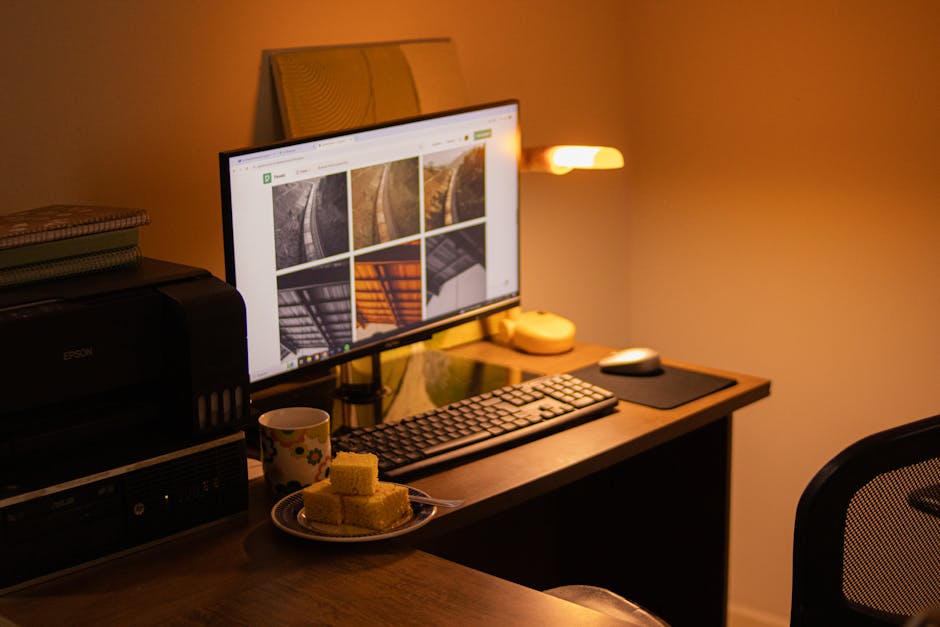
Beyond the panel itself, the “quality of life” features on a monitor often dictate how much you enjoy using it. One of the most significant advancements for the home office is the integrated KVM (Keyboard, Video, Mouse) switch. If you have a personal desktop computer and a work laptop at the same desk, a monitor with a KVM switch allows you to use the same set of peripherals for both. When you switch the monitor input from your laptop to your PC, your mouse and keyboard automatically follow the signal. This eliminates the need for multiple sets of input devices or manual unplugging, which is a common friction point in hybrid work environments.
Connectivity is the next frontier. A monitor that supports USB-C with Power Delivery (PD) is no longer a luxury; it is a fundamental tool for the modern professional. The ability to dock your laptop with a single cable that handles 4K video, high-speed data for your webcam/mic, and charging for the laptop battery is a massive benefit. However, you must check the wattage. A 65W PD port is fine for a MacBook Air or a standard Dell Latitude, but if you are running a 16-inch MacBook Pro or a mobile workstation with a dedicated GPU, you will need at least 90W to prevent the battery from slowly draining while you work.
Pro tip: If your monitor doesn’t have a built-in KVM, you can often achieve a similar result using software like Logitech Flow or Barrier, provided both computers are on the same network. However, a hardware KVM built into the monitor is always more reliable and works before the OS has even booted.
Eye health should also be a priority. Look for monitors with TUV Rheinland certification for low blue light and flicker-free technology. Unlike the “night shift” mode on your computer which turns the screen orange, hardware-level low blue light filters reduce harmful emissions without significantly distorting the color balance. This is vital for anyone prone to digital eye strain or migraines. Additionally, a stand with height, tilt, and pivot adjustment is non-negotiable. If the monitor doesn’t allow you to bring the top third of the screen to eye level, you will inevitably end up with a rounded back and strained shoulders.
Best budget-friendly home office displays under $300

You do not need to spend a thousand dollars to get a professional-grade experience. The budget market has improved drastically, with many features previously reserved for high-end models trickling down to the sub-$300 category. The ASUS ProArt PA278QV is frequently cited by researchers as the best value for money in the productivity space. For roughly $280, you get a 27-inch 1440p IPS panel that comes factory-calibrated for color accuracy. This is a rarity at this price point and makes it an excellent choice for anyone doing light photo work, marketing, or presentation design.
ASUS ProArt PA278QV Highlights
- Price: ~$280
- Pros: Exceptional color accuracy out of the box; 75Hz refresh rate for smoother motion; extensive port selection (DisplayPort, HDMI, DVI-D).
- Cons: No USB-C power delivery; the design is somewhat industrial and bulky; speakers are essentially useless for anything other than system alerts.
If your priority is eye care and a clean aesthetic, the BenQ GW2785TC ($230) is a compelling alternative. BenQ has long specialized in “Eye-Care” technology, and this model includes a built-in noise-canceling microphone—a unique feature that can be a lifesaver if your home office is prone to background noise like barking dogs or traffic. It also features a “Coding Mode” that boosts contrast and saturation for better text legibility, which is helpful even if you aren’t a programmer. It does include USB-C, though the power delivery is limited to 60W, which is sufficient for most mid-range ultrabooks.
When shopping in the budget tier, the biggest trade-off is usually the stand and the build material. Budget monitors often use more plastic and may have stands that only tilt, rather than offering height adjustment. If you find a great panel with a poor stand, you can often solve the problem by purchasing a basic VESA-compatible monitor arm for $30. This combination—a high-quality budget panel on a dedicated arm—often provides a better ergonomic experience than a mid-range monitor on a mediocre stock stand. Ultimately, the best monitor for your home office is the one that allows you to stop thinking about the hardware and start focusing on the work in front of you.
