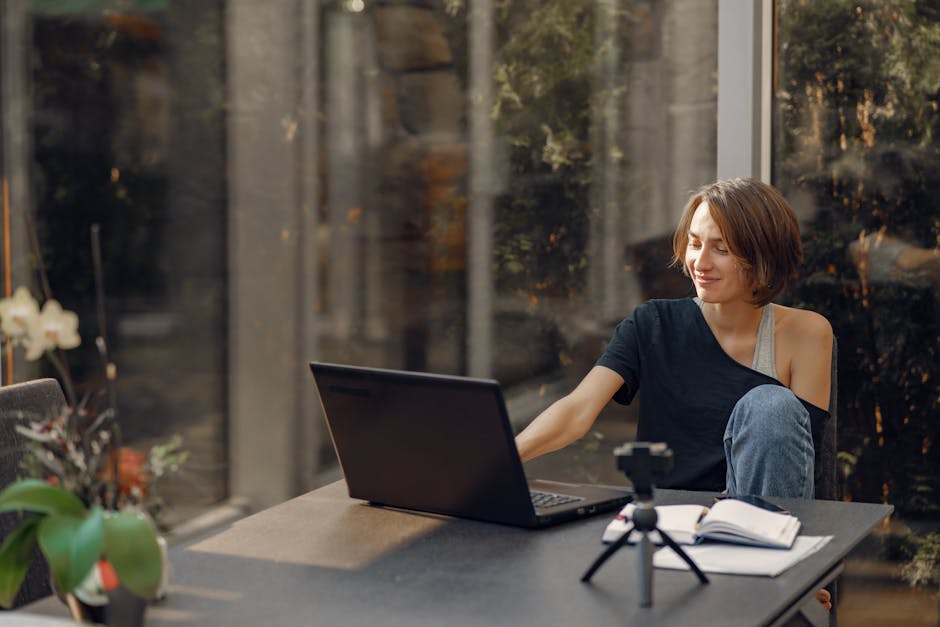
Professionalism in the digital era is no longer measured by the quality of your suit, but by the clarity of your video feed. As remote and hybrid work models solidify into permanent corporate structures, the webcam has transitioned from a peripheral afterthought into a primary business appliance. The common assumption when shopping for the best webcam for work is that a higher resolution—specifically 4K—guarantees a superior image. This is a technical fallacy. While a 4K sensor provides more raw data, the reality of professional video conferencing is dictated by compression algorithms used by platforms like Zoom, Microsoft Teams, and Google Meet. These services frequently throttle outgoing video to 1080p or even 720p to preserve bandwidth. Consequently, a high-end 1080p camera with a large physical sensor often outperforms a cheap 4K camera that suffers from poor low-light performance and digital noise. Selecting the right tool for a home office requires looking past the box art and evaluating the optics, light handling, and software integration.
The Physics of Video Fidelity: Beyond the 4K Marketing
When you see a “4K” badge on a webcam box, it refers to the number of pixels on the sensor, not necessarily the quality of the video your colleagues will see. For most professional applications, the ability of a camera to handle high dynamic range (HDR) and low-light environments is far more impactful than raw pixel count. Most corporate networks and conferencing software cannot actually transmit 4K video in real-time without significant lag or stuttering. The “Megapixel Myth” suggests that more is always better, but in the world of small-format optics, more pixels squeezed onto a tiny sensor often results in smaller individual pixels. These smaller pixels are less efficient at gathering light, leading to the grainy, “snowy” appearance often seen in budget webcams during evening meetings.
Sensor Size vs. Megapixel Count
A larger sensor can capture more light, which is the fundamental currency of image quality. This is why a professional DSLR looks better than a smartphone, even if they both claim to be 12 megapixels. In webcams, a 1/2-inch sensor will almost always produce a cleaner image with less grain than a 1/4-inch sensor, regardless of whether the output is set to 1080p or 4K. When light is scarce—common in home offices with single-window lighting or overhead fluorescent bulbs—a small 4K sensor struggles, creating a muddy, “noisy” image that looks unprofessional. High-end sensors like the Sony STARVIS series are specifically engineered to maximize sensitivity in these low-light conditions, using back-illuminated pixel technology to ensure that every available photon is utilized.
Bandwidth Constraints and Bitrate Realities
Zoom and Teams are designed for stability, not cinematic fidelity. They use aggressive compression to ensure your call doesn’t drop, even if your Wi-Fi signal fluctuates. If you use a 4K webcam, the software is essentially throwing away 75% of the data before it reaches the person on the other end. Therefore, the best webcam for work is one that maximizes the quality of the 1080p stream through superior color science and sharp autofocus. Furthermore, streaming in 4K puts a significant strain on your computer’s CPU and GPU, which can lead to fan noise or system slowdowns during intensive multitasking. A high-quality 1080p stream at a high bitrate is visually superior to a starved 4K stream every time.
Strategic Hardware Selection: Premium Webcams for Executive Use
For those whose roles involve high-stakes presentations, board meetings, or client-facing sales, the visual “presence” of the video matters. You want a camera that mimics the look of a dedicated camera setup without the complexity of HDMI capture cards and external power supplies. The premium market has shifted toward larger glass elements and sophisticated image signal processors (ISPs) that can handle real-time color grading and skin tone correction.
Logitech MX Brio ($199.99)
The Logitech MX Brio is currently the benchmark for professional-grade webcams, representing a significant leap over the aging Brio 4K. It utilizes a Sony STARVIS 2 sensor, which is specifically designed for high performance in varied lighting conditions. This sensor is roughly 70% larger than the one found in the original Brio, allowing for much better natural contrast. Unlike its predecessor, it offers significantly better color accuracy and a “Show Mode” that allows you to tilt the camera down to share physical sketches or documents on your desk, with the software automatically flipping the image for the viewer.
- Technical Specs: 4K at 30fps / 1080p at 60fps; 1/1.2″ Sensor; f/2.0 Aperture; Dual Beamforming Mics.
- Pros: Exceptional low-light performance; dedicated software (Logi Options+ and G Hub) for fine-tuning ISO, shutter speed, and color temperature; excellent aluminum build quality.
- Cons: The mounting clip can be bulky on very thin OLED monitors; high price point for those who don’t need manual controls; requires a high-speed USB-C port.
Razer Kiyo Pro Ultra ($299.99)
While Razer is often associated with gaming, the Kiyo Pro Ultra is a serious tool for the home office. It features the largest sensor ever put into a mass-market webcam (1/1.2 inches), which is roughly the same size as sensors used in high-end point-and-shoot cameras. This allows for a natural “bokeh” effect—the blurred background—that is optical rather than software-generated. It creates a professional, depth-of-field look that artificial background blurs can’t replicate without glitchy edges around your hair or ears. It also features an onboard processor that can output uncompressed 4K video, though this is rarely utilized by standard conferencing apps.
- Technical Specs: 4K at 30fps; Sony 1/1.2″ STARVIS 2 sensor; f/1.7 Aperture; HDR support.
- Pros: Unrivaled raw image quality; true f/1.7 aperture for incredible light intake; hardware-level privacy shutter that works like a camera iris.
- Cons: Extremely large physical footprint that may block parts of your screen; lacks a built-in microphone that matches the quality of the video; requires Razer Synapse software which can be resource-heavy.
Reliable Mid-Range Solutions for Daily Productivity
Most remote workers need a reliable “set it and forget it” solution. These cameras bridge the gap between the poor quality of built-in laptop lenses and the expensive enthusiast gear. They focus on consistent autofocus, natural skin tones, and easy mounting. In this category, the focus is on the “appliance” nature of the device—it should work perfectly every time you plug it in without requiring manual calibration.
Logitech Brio 500 ($129.00)
The Brio 500 is designed specifically for the modern workspace, moving away from the clinical, industrial look of older webcams. It offers a 90-degree field of view that can be digitally cropped. Its most distinctive feature is the auto-framing capability (RightSight), which uses AI to keep you centered even if you shift in your chair or stand up during a long call. This prevents the “static” look of many cheap webcams and makes the video feel more dynamic and engaging.
- Technical Specs: 1080p at 30fps / 720p at 60fps; 4MP Sensor; Glass Lens; Dual Noise-Reducing Mics.
- Pros: Stylish design available in multiple colors; great auto-exposure; physical privacy dial is integrated into the side of the unit.
- Cons: Resolution is capped at 1080p; the plastic build feels less premium than the MX line; low-light performance is good but not class-leading.
Anker PowerConf C200 ($59.99)
For those on a budget, the Anker PowerConf C200 offers features usually reserved for cameras twice its price. It provides 2K resolution, which gives a bit more flexibility for cropping than standard 1080p, and it includes a physical privacy cover. It is a compact, no-nonsense appliance that fits easily into a laptop bag for travel. The AnkerWork software is surprisingly robust, allowing users to adjust the field of view to 65, 78, or 95 degrees depending on how much of their room they want to show.
- Technical Specs: 2K at 30fps; Adjustable FOV; Dual Mics with AI Noise Reduction; USB-C Connectivity.
- Pros: Excellent value for money; very small footprint; surprisingly good dual microphones that filter out keyboard clicks.
- Cons: Color balance can occasionally lean too cool (blue-ish) in natural light; autofocus is slightly slower than Logitech’s top-tier models.
AI-Powered Webcams for Dynamic Presenters
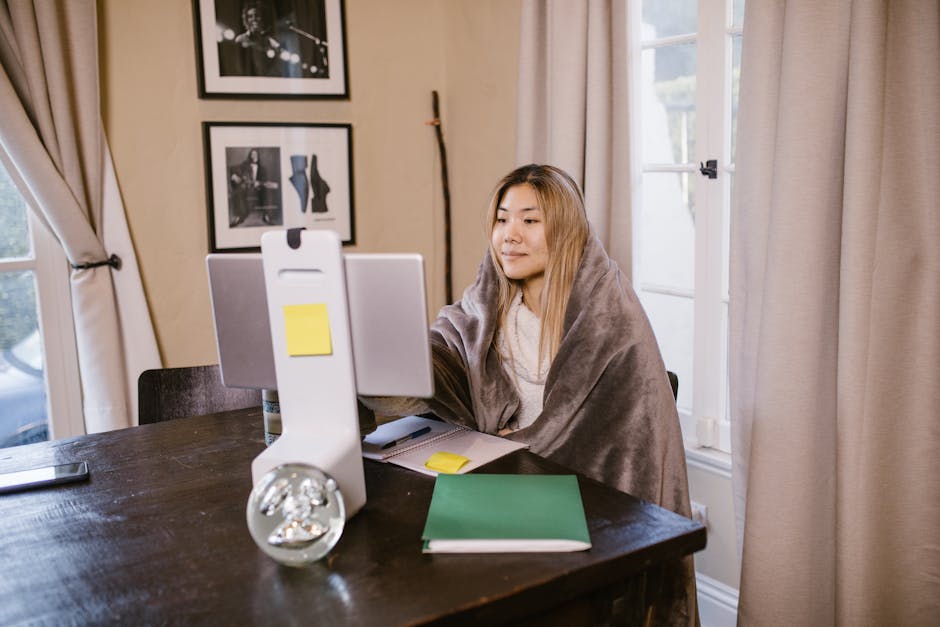
If your work involves standing up, moving to a whiteboard, or demonstrating physical products, a static camera is a significant limitation. A new category of webcams uses 2-axis or 3-axis gimbals combined with AI tracking to follow the speaker around the room. This isn’t just a gimmick; it significantly increases engagement for remote training, education, and keynote presentations.
Insta360 Link ($299.99)
The Insta360 Link looks like a miniature version of a professional drone camera. It sits on a 3-axis gimbal and uses AI to track your face with remarkable smoothness and speed. It also features gesture control—you can hold up a “V” sign to trigger zooming or a palm to start tracking. For teachers or trainers, the “Whiteboard Mode” uses AI to square off and enhance a physical whiteboard in the background, making the text legible for remote viewers as if it were a digital screen share.
- Technical Specs: 4K at 30fps; 1/2″ Sensor; 3-Axis Gimbal; Dual Noise-Canceling Mics.
- Pros: Best-in-class tracking that never loses the subject; 4K sensor with great HDR; versatile mounting options including a 1/4″ thread for tripods.
- Cons: The gimbal mechanism is delicate and can be damaged if dropped; software must be running for gesture controls to work; price is prohibitive for casual users.
OBSBOT Tiny 2 ($329.00)
The OBSBOT Tiny 2 is the primary competitor to the Insta360, featuring a larger 1/1.5-inch sensor and incredibly fast voice control. You can literally tell the camera to “Zoom In” or “Track Me,” which is often more reliable than hand gestures when you are in the middle of a complex presentation. Its beauty mode and background blur are processed on the device itself, reducing the load on your computer’s CPU. When not in use, the camera automatically tilts down to point at its base, providing a physical guarantee of privacy.
- Technical Specs: 4K at 30fps; 1/1.5″ CMOS Sensor; Dual Native ISO; Voice Control.
- Pros: Voice command integration is a game-changer; rapid autofocus using All-Pixel Auto Focus technology; high-quality dual-native ISO for low light.
- Cons: Very high price; requires a USB 3.0 port for full functionality; the software interface can be complex for non-technical users.
Essential Technical Specs: Framing, Focus, and Field of View
When comparing different models, three technical specifications determine how you will actually appear to your colleagues. These are often buried in the spec sheet but are more important than the brand name on the front of the device. Understanding these allows you to troubleshoot issues before they disrupt a meeting.
Fixed Focus vs. Autofocus
Cheap webcams use fixed-focus lenses, which are set to keep everything from about 2 feet to 10 feet in focus. This is fine if you never move, but if you lean in to show something to the camera, you will be a blur. Professional work requires a camera with active autofocus. The speed of that autofocus is what separates the $50 cameras from the $150 ones. Look for “Phase Detection Autofocus” (PDAF) in high-end models for the fastest response, especially if you move your hands a lot while speaking.
Adjusting Field of View (FOV)
A wide field of view (90 degrees or more) is great for huddle rooms where you need to fit four people in the frame. However, for an individual at a desk, a wide FOV often shows too much of your room—including the laundry basket or the door behind you. The best webcam for work allows you to toggle between 65 degrees (head and shoulders), 78 degrees, and 90 degrees. This digital cropping allows you to frame yourself professionally regardless of your room’s layout. Always opt for a camera that allows FOV adjustment via software.
A common mistake is choosing the widest FOV possible. In a home office, a narrow 65-degree field of view is usually more professional as it eliminates distracting background elements and keeps the focus entirely on the speaker.
Privacy Features and Hardware Security Standards

In a home environment, the webcam is a potential privacy vulnerability. Relying on a software-based “off” switch is insufficient for many corporate security standards, particularly in the finance or legal sectors. The physical design of the camera should provide visual confirmation that it is not recording. This is a key part of “appliance care”—ensuring the device respects the boundaries of the home.
Physical Privacy Shutters
The gold standard is a physical sliding cover that sits behind or in front of the glass. Some cameras, like the Logitech Brio 500, use a dial on the side to rotate a physical shield. Others, like the Razer Kiyo Pro Ultra, use a lens-cap style cover. Avoid cameras that rely solely on an LED light to indicate status, as these can theoretically be bypassed by sophisticated malware. A physical barrier is the only 100% effective solution against unauthorized access.
Indicator Lights and Software Toggles
If a physical shutter isn’t available, look for a camera with a hard-wired LED. This means the light is physically part of the power circuit for the sensor—if the sensor is on, the light must be on. Additionally, check if the manufacturer’s software allows for a “Global Mute” that kills both the video and audio feed at the OS level. This provides a secondary layer of protection during sensitive meetings or when you are away from your desk.
Optimizing the Home Office Environment for Better Video
Even the most expensive webcam will look poor if the lighting is inadequate. To treat your webcam like a professional appliance, you must optimize the environment it operates in. The most common issue is backlighting—sitting with a bright window behind you. This causes the camera’s auto-exposure to darken your face to compensate for the bright background, leaving you as a silhouette.
The Three-Point Lighting Principle
You don’t need professional studio lights, but following basic lighting principles helps. Your “Key Light” should be in front of you, slightly to one side. A simple desk lamp with a warm bulb can serve this purpose. The “Fill Light” should be on the other side to soften shadows. Finally, ensure there is some light on the background to create separation between you and the wall. This prevents the “floating head” look and makes the webcam’s autofocus work much more efficiently.
Webcam Placement and Ergonomics
Placement is just as important as lighting. A webcam placed too low—such as on a laptop sitting on your lap—creates an unflattering “nostril cam” angle. Ideally, the webcam should be at eye level. If you use an external monitor, mount the camera at the top center. If you use a laptop, consider a laptop stand to raise the screen. This eye-level positioning facilitates better eye contact, as looking at the camera lens mimics looking into the eyes of your colleagues.
Appliance Care: Maintenance Tips for Webcams
To ensure your webcam lasts for years, it requires basic maintenance, much like any other home appliance. Dust and fingerprints on the lens are the primary causes of “hazy” or “soft” video quality. Because webcam lenses are often coated with anti-reflective materials, they should be handled with care.
- Cleaning the Lens: Use a dry microfiber cloth to gently wipe the lens in a circular motion. Avoid using paper towels or tissues, as these can leave micro-scratches. If there is a stubborn smudge, use a tiny drop of lens cleaner specifically designed for optics—never use window cleaner or harsh chemicals.
- Firmware Updates: Manufacturers frequently release firmware updates to improve autofocus speed and color accuracy. Use the provided software (like Logi Tune or AnkerWork) to check for updates at least once a quarter.
- Cable Management: Avoid sharp bends in the USB cable, especially near the connector. If the camera is
